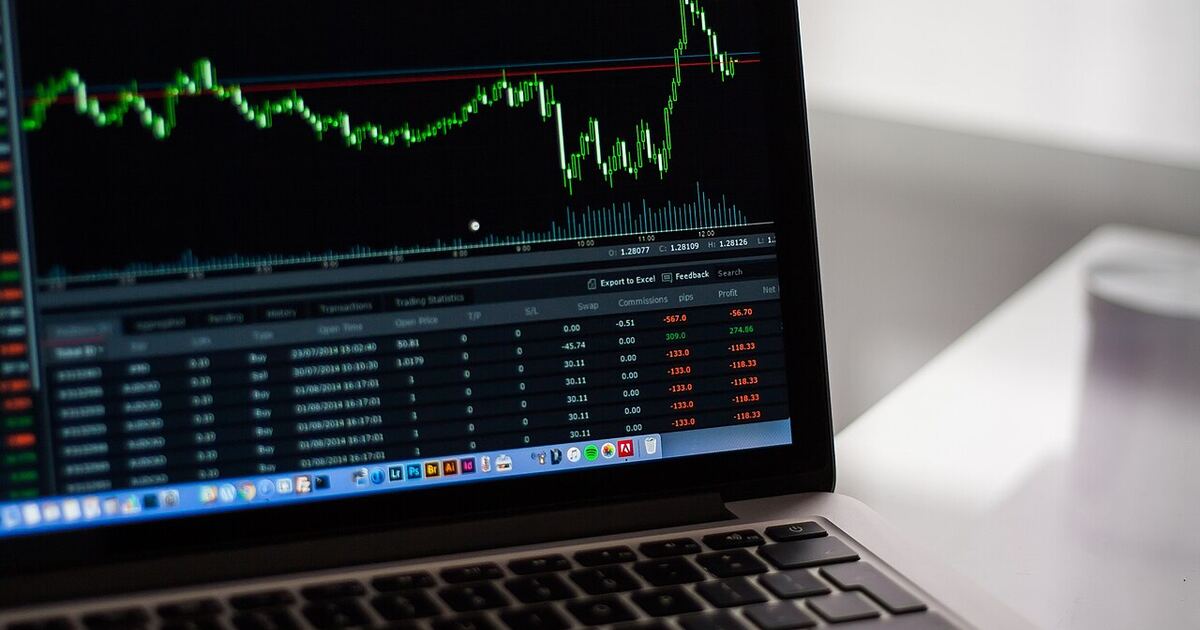

Three types of forex trading apps
When people search for a "forex trading app", they usually mean one of three different things. Understanding the difference saves a lot of confusion, especially when a login fails for no obvious reason.
- Broker apps. Many brokers publish their own mobile app, for example the Exness Trade app, the XM app or the FBS app. They usually combine account management (deposits, withdrawals, verification) with a trading screen. Features differ between brokers and change over time, so check the current description in the store before you rely on any specific function.
- MetaTrader 4 and MetaTrader 5. These are platforms made by MetaQuotes and offered by hundreds of brokers. You install one app and log in to the server of your broker. They are the most common choice for charting, indicators and Expert Advisors. If you are not sure which version to pick, read our MT4 vs MT5 comparison.
- Web terminals. A web terminal runs in your browser and needs no installation. It is useful on a work computer, on a Mac, or when you only need to check a position quickly.
The key idea: the app is only the window. Your account, your funds and your orders live on the broker's server. That is why the same account can be opened in a phone app, on a PC and in a browser at the same time.
Which app type should you choose?
| App type | Device | Best for | Limitations |
|---|---|---|---|
| Broker app (e.g. Exness Trade) | Android, iPhone | Managing the account, deposits and withdrawals, quick trades on the go | Features depend on the broker; usually less charting and no Expert Advisors |
| MetaTrader 4 mobile | Android, iPhone | Simple charting and order management on a phone | Only for MT4 accounts; Expert Advisors do not run on the phone itself |
| MetaTrader 5 mobile | Android, iPhone | Charts, more timeframes and order types on a phone | Only for MT5 accounts; availability in stores may depend on your region |
| MetaTrader 4/5 desktop | Windows (MT5 also for macOS via official builds) | Serious analysis, indicators, Expert Advisors, multiple charts | Needs a computer that stays on if you run automated strategies |
| Web terminal | Any modern browser | Trading without installing anything, using a shared or Mac computer | Fewer tools than the desktop version; depends on the broker offering it |
A practical setup for many traders is simple: the desktop platform for analysis, the phone app for monitoring and emergency position management, and the broker app for money operations. You do not have to use all of them.
Installing on Android safely
On Android, open Google Play, search for "MetaTrader 4" or "MetaTrader 5" (publisher MetaQuotes), or for your broker's own app, and tap Install. Always check the publisher name, because copycat apps exist in every store.
Why you should not install an APK from a chat or website. A file sent in a Telegram group, a "mod" APK or a "premium unlocked" version can contain code that reads what you type, including your trading password. That is a direct path to account theft. There is no legitimate reason for a trading platform to be distributed this way. If Google Play does not show the app in your country, use the platform's web terminal or the desktop version instead of an unofficial file.
If you must install from outside the store, take the file only from your broker's official website, from a link inside your logged-in Personal Area. Never from a message, even if it comes from someone claiming to be support.
Installing on iPhone
On iPhone, the only normal route is the App Store. Search for MetaTrader 4, MetaTrader 5 or your broker's app. Availability of MT4 and MT5 can depend on the region of your Apple ID, so check the App Store in your region. If the app is not visible, do not look for workarounds from unknown websites; use the broker's web terminal in Safari instead.
Once installed, the login flow is the same as on Android: choose "Login to an existing account", search for your broker and select the exact server.
Windows PC and Mac
Windows 10 and 11. MT5 and MT4 run on Windows 10 and Windows 11. The safest way to get the installer is the download link in your broker's Personal Area or on the broker's official site, which is usually preconfigured with the broker's servers. The installer is a normal setup file; run it, accept the standard installation steps and start the terminal. Many beginners search for "download Exness for PC" or "Exness download for Windows 10" and end up on look-alike sites. Instead, log in to the broker's own website and use its download section. You can read more about the broker in our Exness review.
Mac. MetaQuotes provides MT5 for macOS, and many brokers offer it as well. If it does not work on your Mac, or you prefer not to install anything, use the web terminal in your browser.
On a computer you also get the best environment for automated trading. If you are curious about it, start with our guide to MT5 robots and Expert Advisors and remember that a robot does not remove risk.
How to log in: account number, password and server
Most "the app does not work" problems are actually login problems. To log in to MetaTrader you need exactly three things:
- Account number (login), a number from your Personal Area.
- Trading password, not the password you use for the website. If you forgot it, reset it in the Personal Area.
- Server name, typed or selected exactly, including digits and suffixes. Servers for demo and real accounts are different.
The most frequent errors:
- Invalid account. Usually a wrong server, or a real account entered on a demo server (or the other way round).
- MT4 vs MT5 mismatch. An account is created for one platform. An MT5 account cannot be opened in MT4 and vice versa. If you need the other platform, open a new account of that type in the Personal Area.
- Server not found in the list. Update the app, search by broker name, or copy the server name from the Personal Area.
If you do not have an account yet, see how to register an Exness account, or compare other brokers such as XM, FBS, Weltrade and RoboForex. Each of them lets you use MetaTrader, but the server names and the way you reach the downloads are different.
Security: protect your account on every device
- Turn on two-factor authentication in the Personal Area and, where available, use an authenticator app rather than SMS only.
- Never share the trading password or a screen showing it. Support staff of a legitimate broker will not ask for it.
- Avoid "premium" or "cracked" apps in Telegram. Channels that offer paid-unlocked versions, "signal apps" or special builds are a classic scam pattern. Read our article on how to spot forex scams.
- Use the investor password if you only want to let someone view the account, for example a mentor. It gives read-only access.
- Keep the phone updated and lock it with a PIN or biometrics. An unlocked phone with an open trading app is an open account.
- Check the website address before you enter your Personal Area password. Phishing pages copy broker logins.
Risk management on a mobile phone
A phone makes trading feel easy, and that is exactly the risk. A few habits help:
- Always set a stop loss when you open the order, not later. On a small screen it is easy to forget.
- Check the lot size twice. Mistaken extra zeros are a common mobile error.
- Do not trade from a bad connection. Slippage and failed orders are more likely on weak mobile internet.
- Turn off one-click trading until you are comfortable, or confirm the size every time.
- Keep the risk per trade small, and use a demo account to practise. Our guide to the demo account explains how to do it properly.
- Do not leave open positions without a plan just because you can look at them any time. Constant checking often leads to emotional decisions.
What to do next
If you are just starting, follow our beginner start guide, install MT5 from an official source, log in to a demo account and practise before you fund anything. The right app is the one you understand and can use calmly, not the one with the most buttons.
Risk warning: Forex and CFD trading carries a high level of risk and most retail traders lose money. Only trade with money you can afford to lose. You must be 18 or older. This article is for education only and is not financial advice. No app or platform can guarantee profit.